Getting Started
Reference
Guides
How to get an API key for Mistral
Please note:
Your paid Mistral Pro subscription is not compatible with MATE. Mistral requires us to use a separate Mistral API key.
A Mistral account is for free. But there will be costs when using MATE with your API key. The costs depend on model, length of generated scripts, and on how many tools are being called. Check the pricing table here: https://mistral.ai/pricing#api
What is an API key?
Steps
Sign in to Google AI Studio
Add a payment method and buy some credits
Generate an API key
Enter API key in MATE plugin
Sign in to Mistral Admin console
Open this page and sign in with your Mistral account:
https://admin.mistral.ai/organization/api-keys
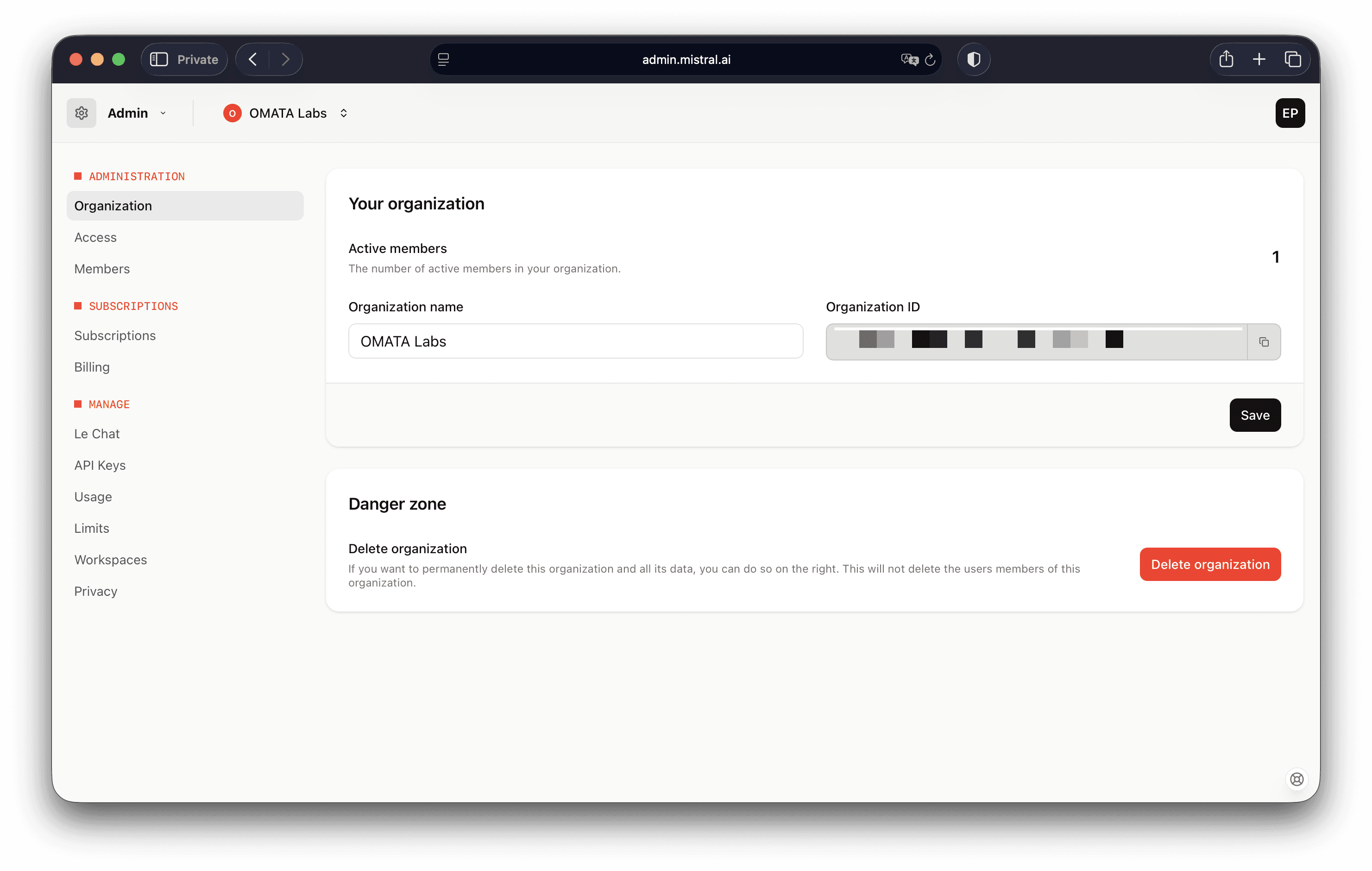
Add a payment method and buy some credits
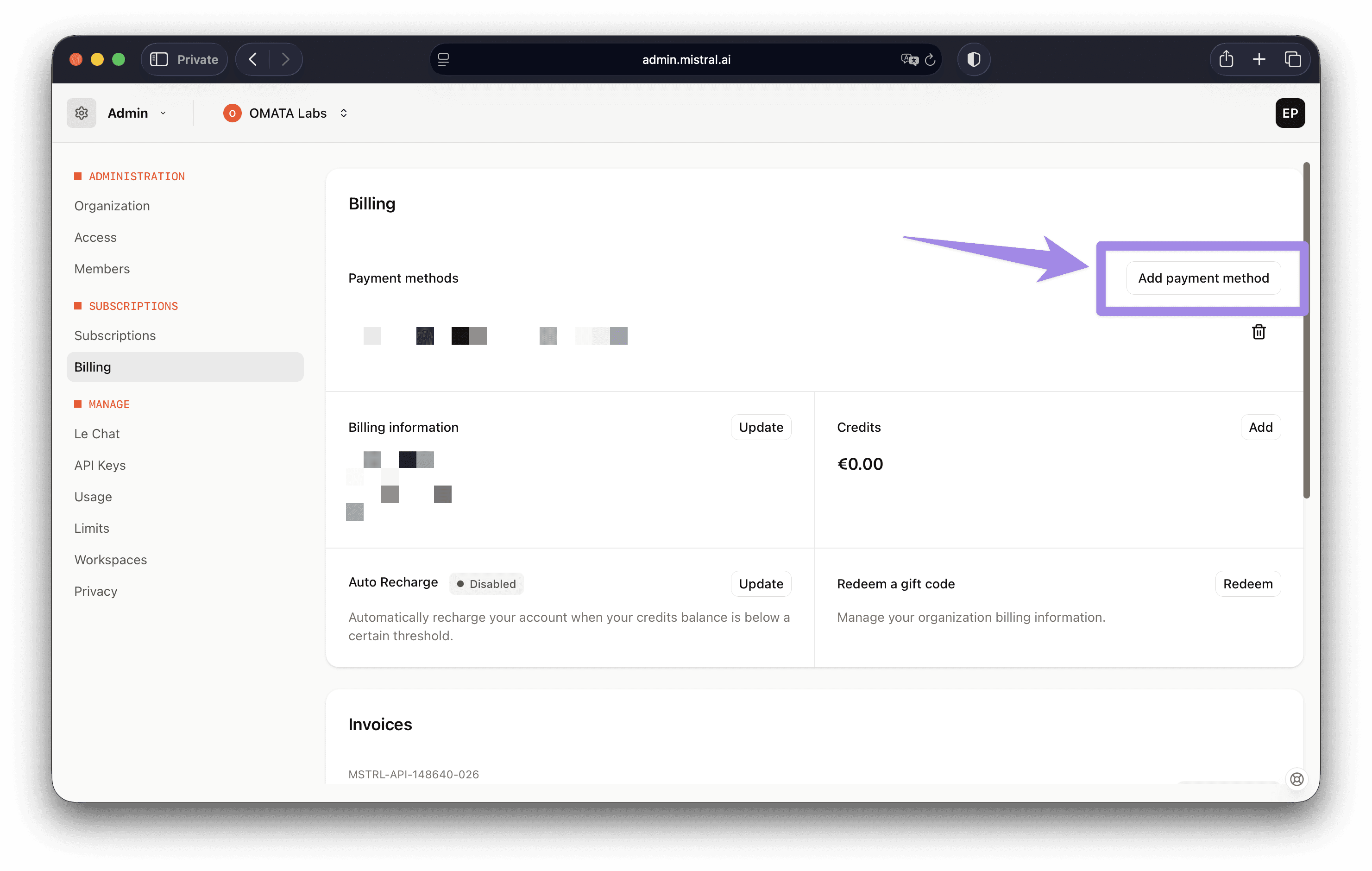
You will need to add a payment method (e.g. credit card). And also you will need to buy at least $5 worth of credits. Otherwise your API key won't work.
Open this page to buy credits
https://admin.mistral.ai/organization/billing
Under https://admin.mistral.ai/plateforme/limits you can set a monthly spending limit to keep costs under control. We recommend to set this up to give you some control over your credit balance.
Generate an API key
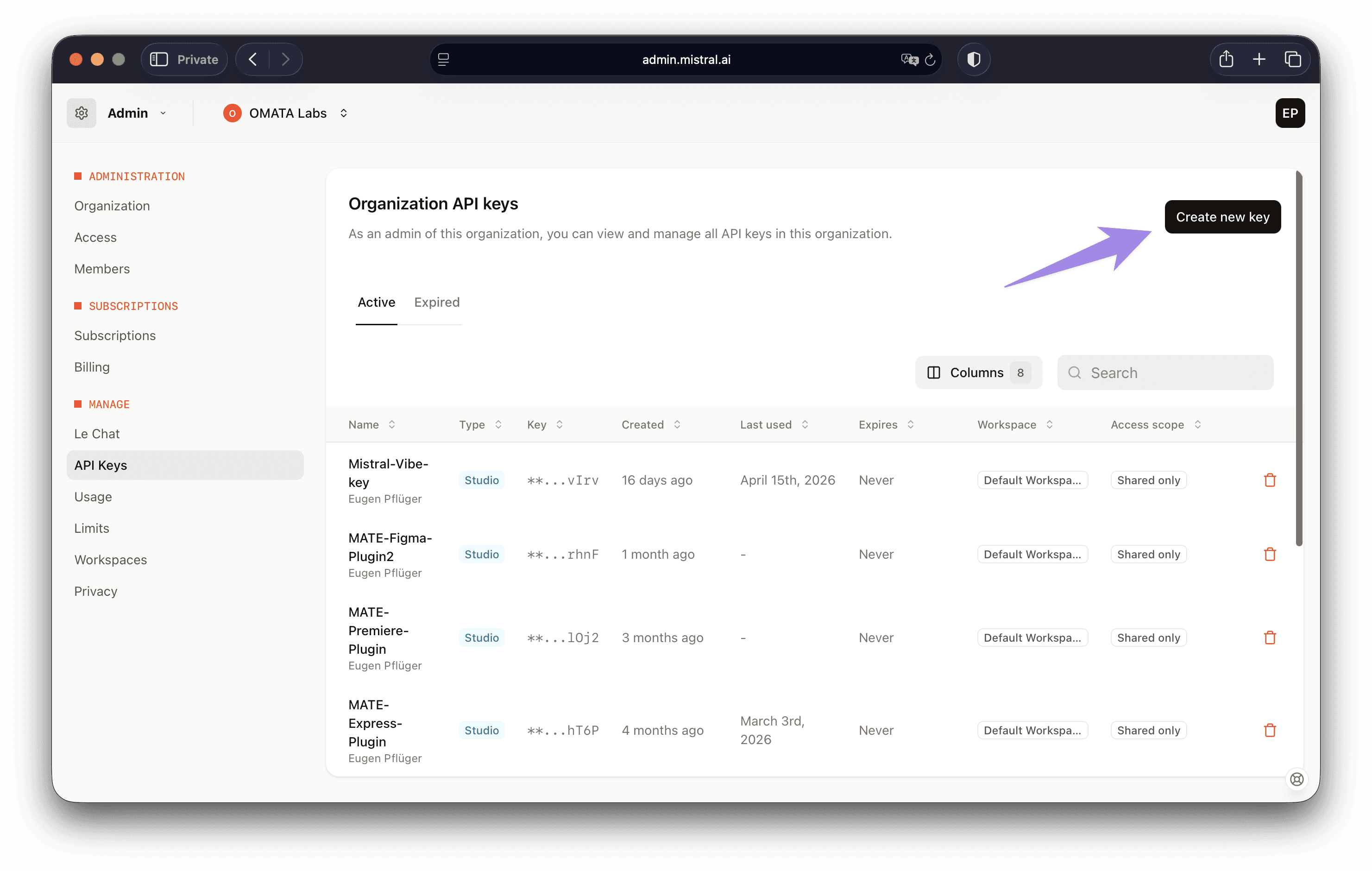
Navigate to this page: https://admin.mistral.ai/organization/api-keys
Click "Create new key" in the top right corner.
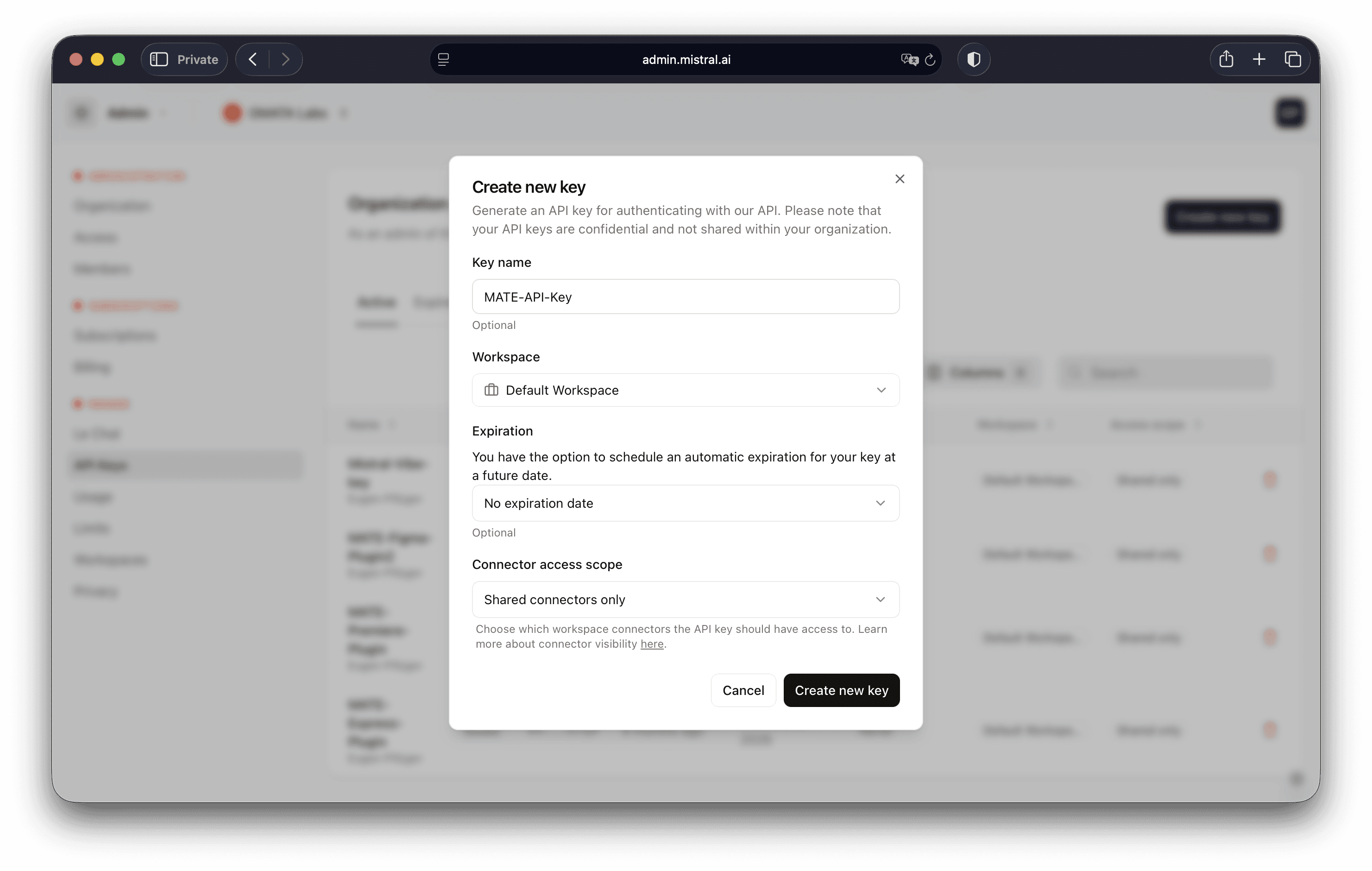
Choose a workspace and click "Create new key".
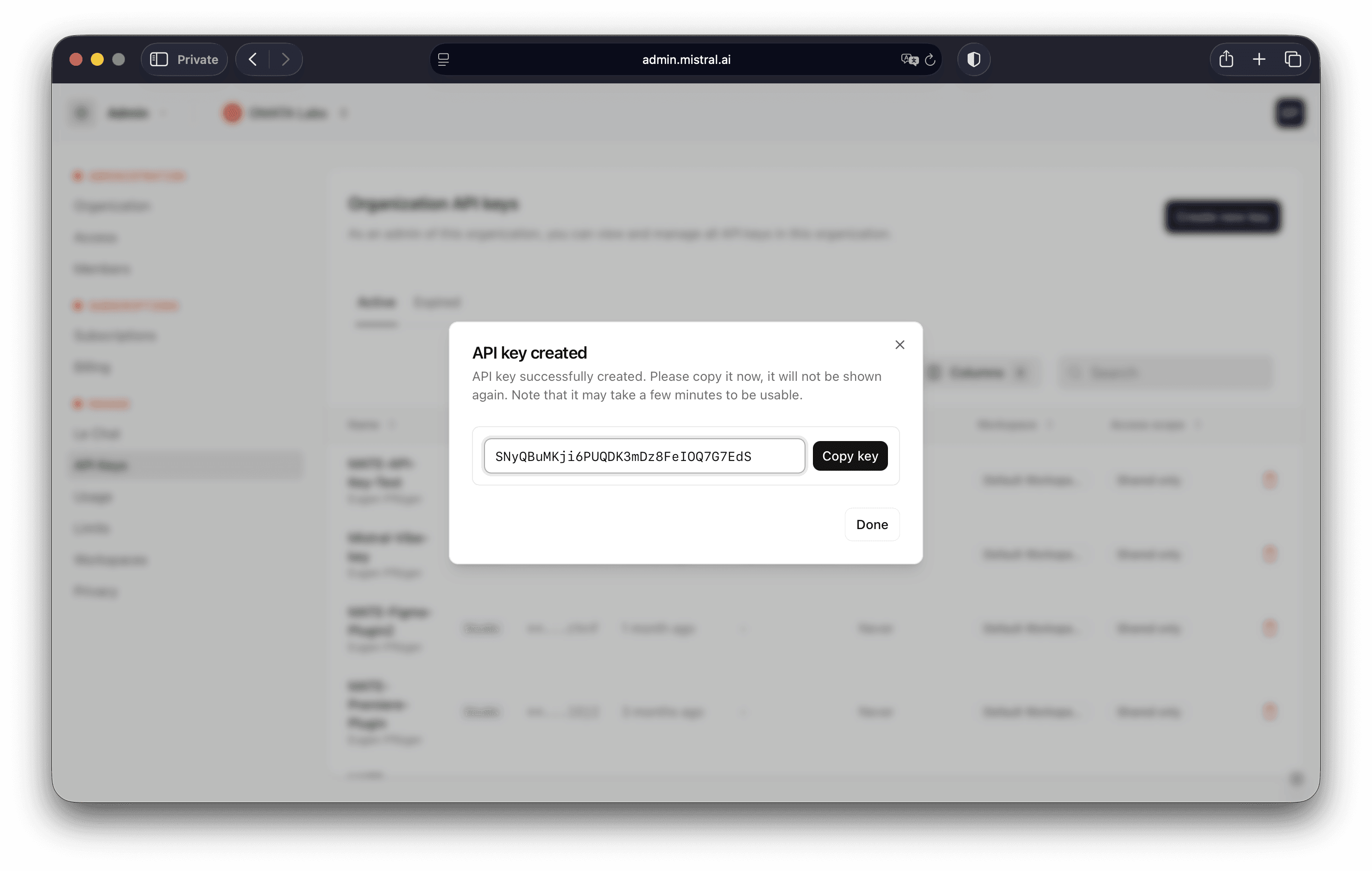
Important: Copy the key immediately and save it somewhere safe. If you lose it, just create a new one.
Do not share this key. Anyone with your key can use Claude on your credit balance. Recreate the key from time to time.
Enter the API key in MATE
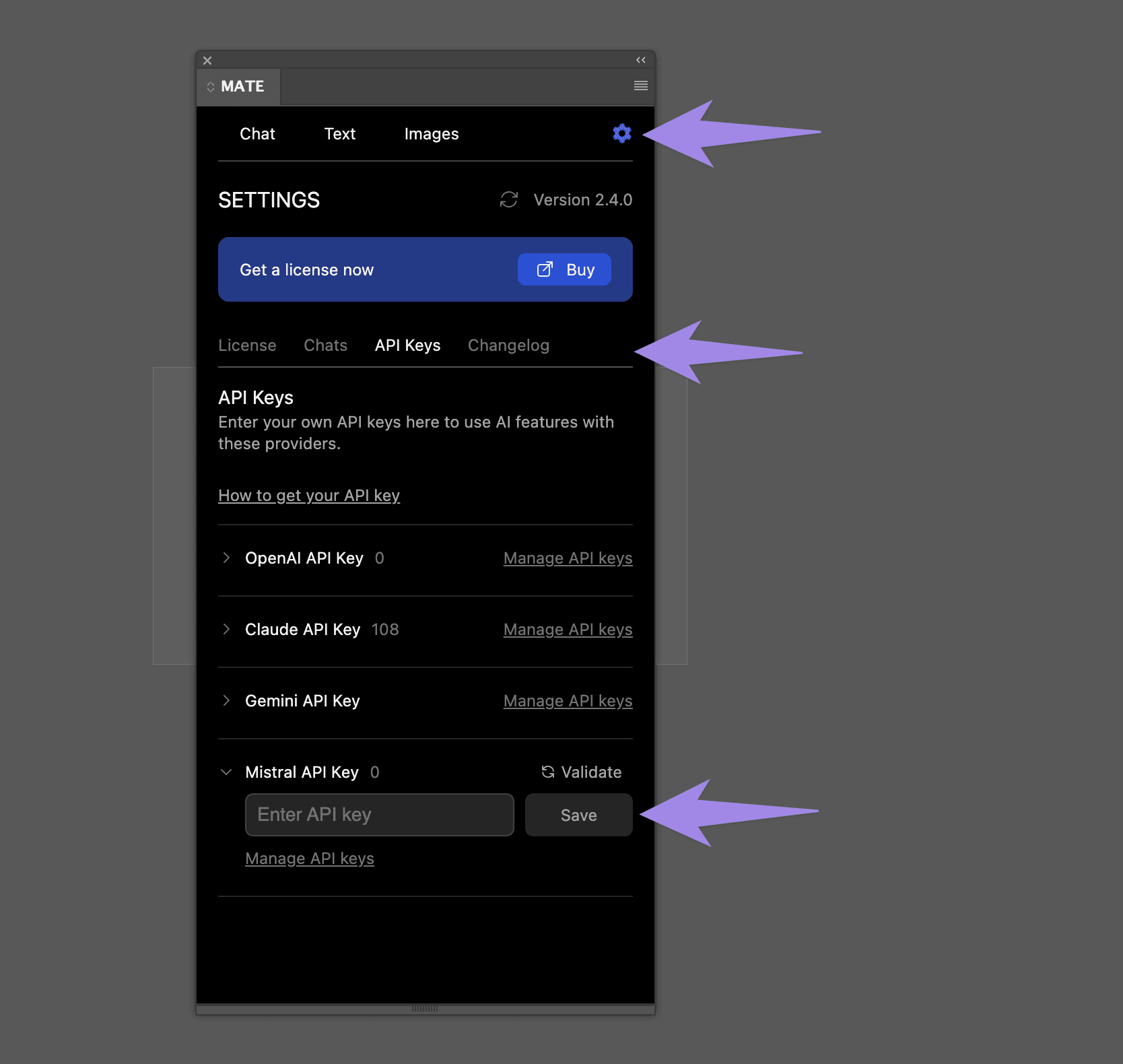
In MATE open the settings page, click on the tab "API Keys", choose "Gemini API Key".
Enter your key and click "Save".
Your key will be validated quickly, to see if it works.
Ready to go
Now you can start a new chat, pick a Mistral model and ask MATE to do things for you.