Getting Started
Reference
Guides
MCP Server
MCP is a standard that links AI apps (like MATE) to external tools and data sources. It works like a connector that lets MATE access live information, run actions, or use extra features without needing built-in support.
Why use MCP?
Think of it as a plugin system that extends what MATE can do – from accessing your company's databases and project management tools to integrating specialized services. With MCP, MATE isn't limited to its built-in capabilities anymore. You decide which data sources and tools to connect, tailoring MATE to your specific workflow and needs. Some examples:
Context7 (free)
"With context7, get library docs for Illustrator to fix the issues with my Artboards."
You can ask MATE to get latest documentation for a certain API call. You can point MATE to docs so it can better solve your task.Firecrawl (paid):
"Use Firecrawl to test if each URL in my document works".
With Firecrawl, MATE can surf the web in real-time (not just rely on outdated training data). Firecrawl is also great for getting "dummy" content based on real data, live from the web.Notion (free):
"Use Notion: get me the todo list from my project 'Poster Competition'"
Ask MATE for your data in Notion (). MATE will list your todos and you can ask it to check off items.QR Code:
"Generate a QR code for www.omata.io"
Ask MATE to generate QR Codes for the URLs in your doc.
Only remote MCP servers are supported. Extensions in InDesign and Illustrator can't technically connect to local MCP servers.
Here is an overview of some available remote servers: https://mcpservers.org/remote-mcp-servers
Note: please only connect to servers that you know and trust. MATE has no control over how and who is running the servers you connect to.
Connect an MCP server from the gallery
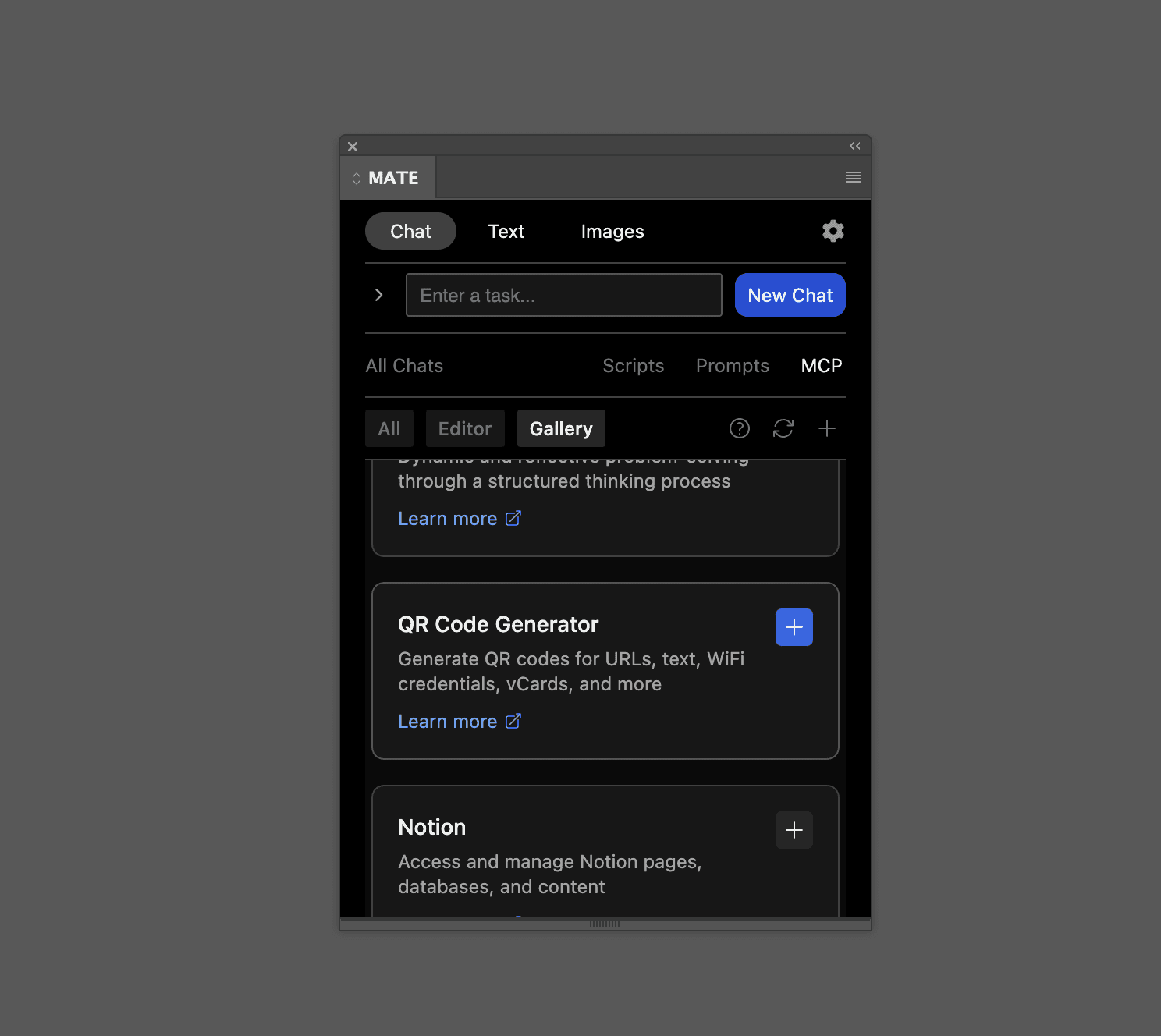
We will connect the QR Code MCP server.
Open the MCP tab
Select the "Gallery" button
QR Code: Click the "Add" button (plus icon)
Your QR Code MCP is added to your active MCP servers under "All"
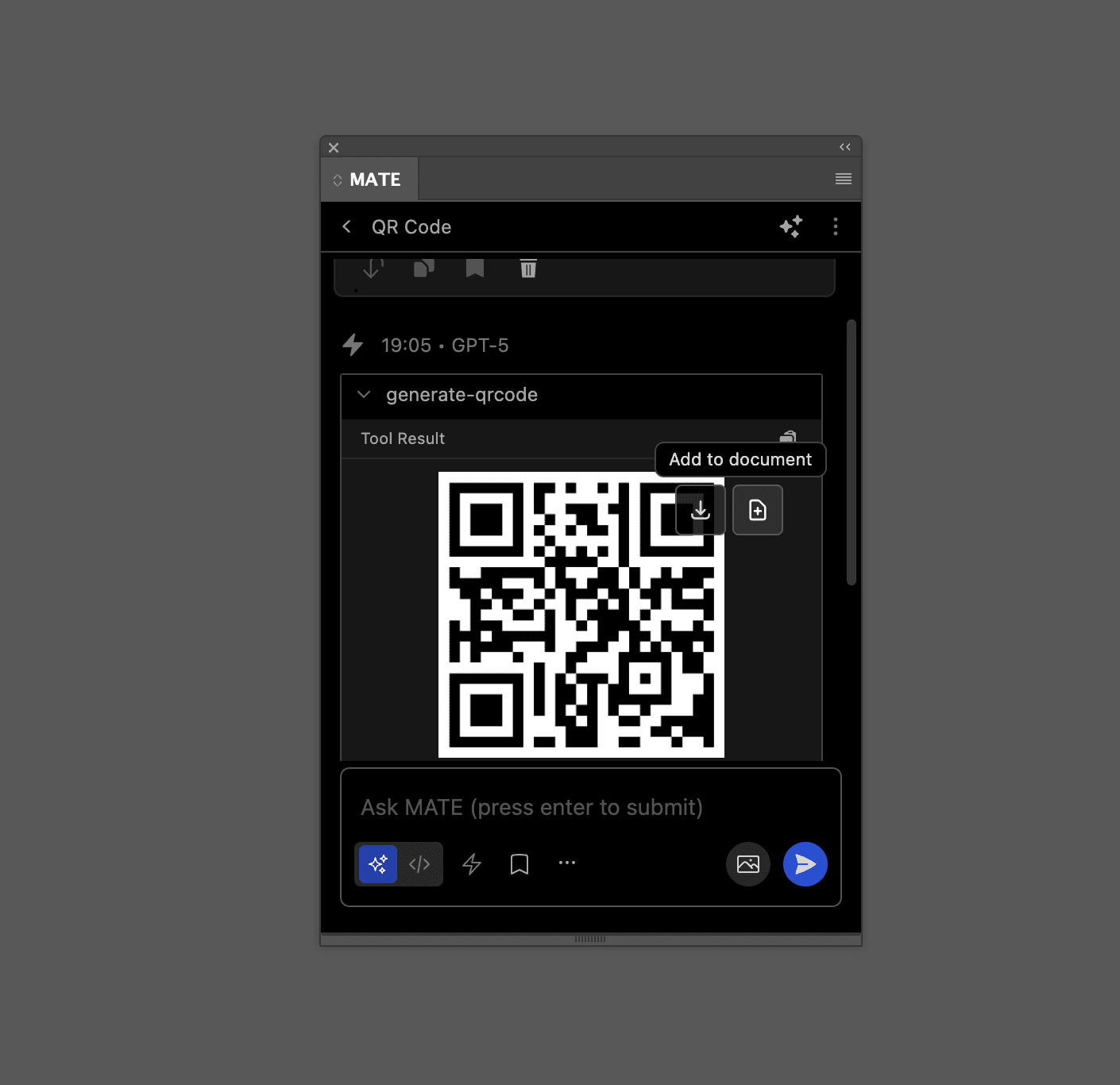
Now, in a chat with Agent Mode you can prompt "Generate a QR code for www.omata.io". MATE will call the QR Code MCP server and come back with a generated QR code for your URL.
Open the QR response to find the QR code. Drag it into your document or use the buttons to download or add to your document.
Connect an MCP server from scratch
Please note: only remote MCP servers are supported. Local MCP servers can't be connected from extensions in InDesign and Illustrator.
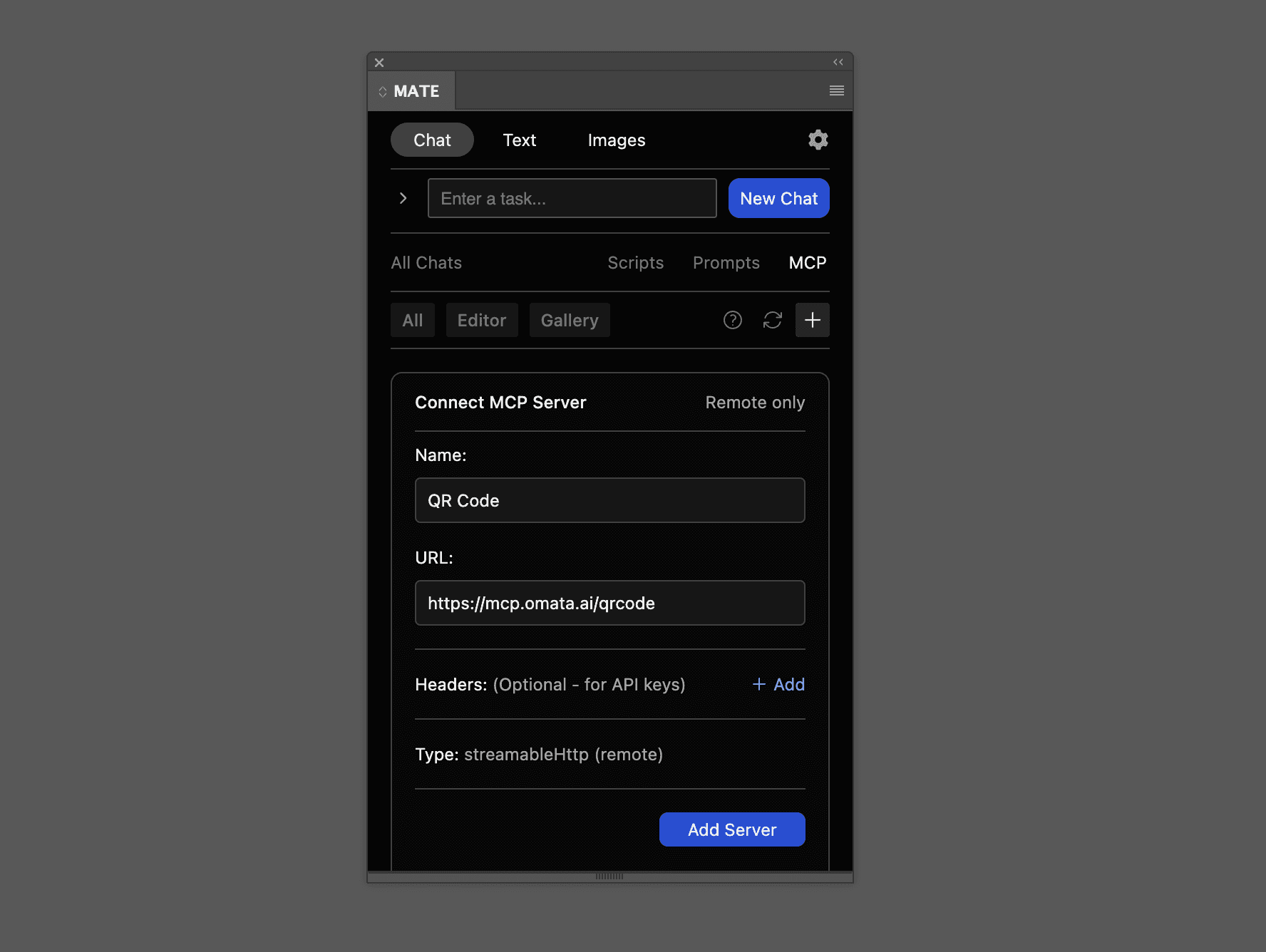
Navigate to the MCP tab
Click the "Add" button
Fill out the form. Pick a useful name.
Add the URL you got from your service (e.g. "https://mcp.omata.ai/qrcode")
Add header parametersIf the MCP server needs them. Please check the documentation of the MCP server provider.
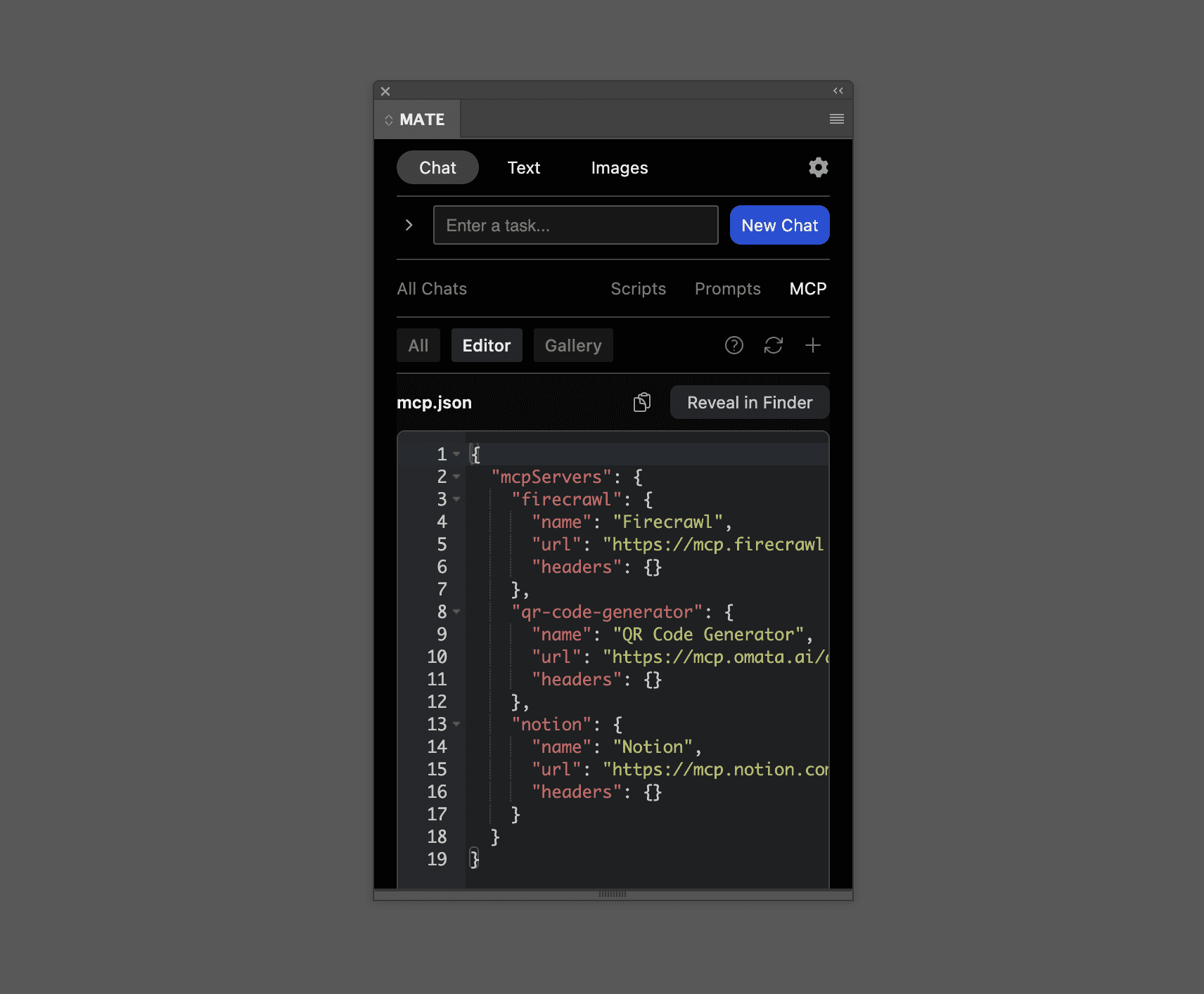
If you need to add very specific details that are not part of the form, please open the "Editor" tab. Here is the raw json config file which you can adjust.
If the server is connected it will load the available tools. If there are no tools no connection could be established. Try to reload or check the details of your form/json.
Now, open a chat, switch to Agent Mode and ask MATE to list the tools of your MCP server. "List the tools of "QR Code Generator". Use the name that you added in the "name" field.
If the MCP server is working correctly then MATE will list the available tools. You can now directly ask MATE to call a certain tool or give it a general task and it will decide on it's own what tools to call.
Connect/edit an MCP server with the JSON editor
Please note: only remote MCP servers are supported. Local MCP servers can't be connected from extensions in InDesign and Illustrator.
Navigate to the MCP tab
Open the "Editor" tab
Edit the config json. Changes will be auto-saved.
Only for pros: "Reveal" button will point you to the original json file on your disk.
Note: do not move or rename this file! Make only changes if you know what you are doing.Switch to "All" tab to see if your MCP servers are all connected and working.
Connect an MCP server with authentication
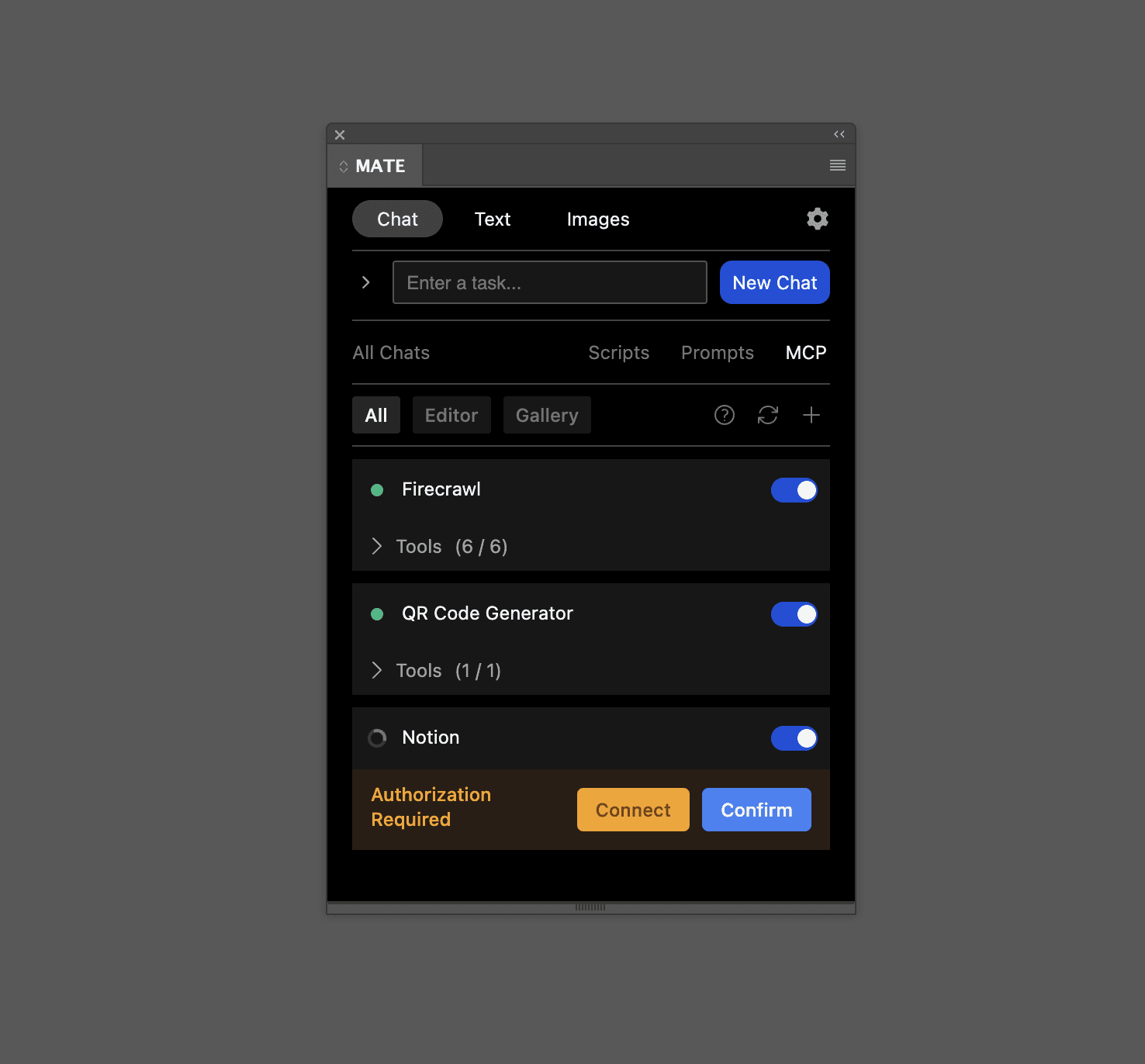
Some MCP servers need authorization. E.g. Notion needs you to authorize MATE to use your data. If this is the case a "Connect" button will be shown.
Navigate to the MCP tab
Open "Gallery"
Add the Notion MCP
In "All" click "Connect" on the Notion server
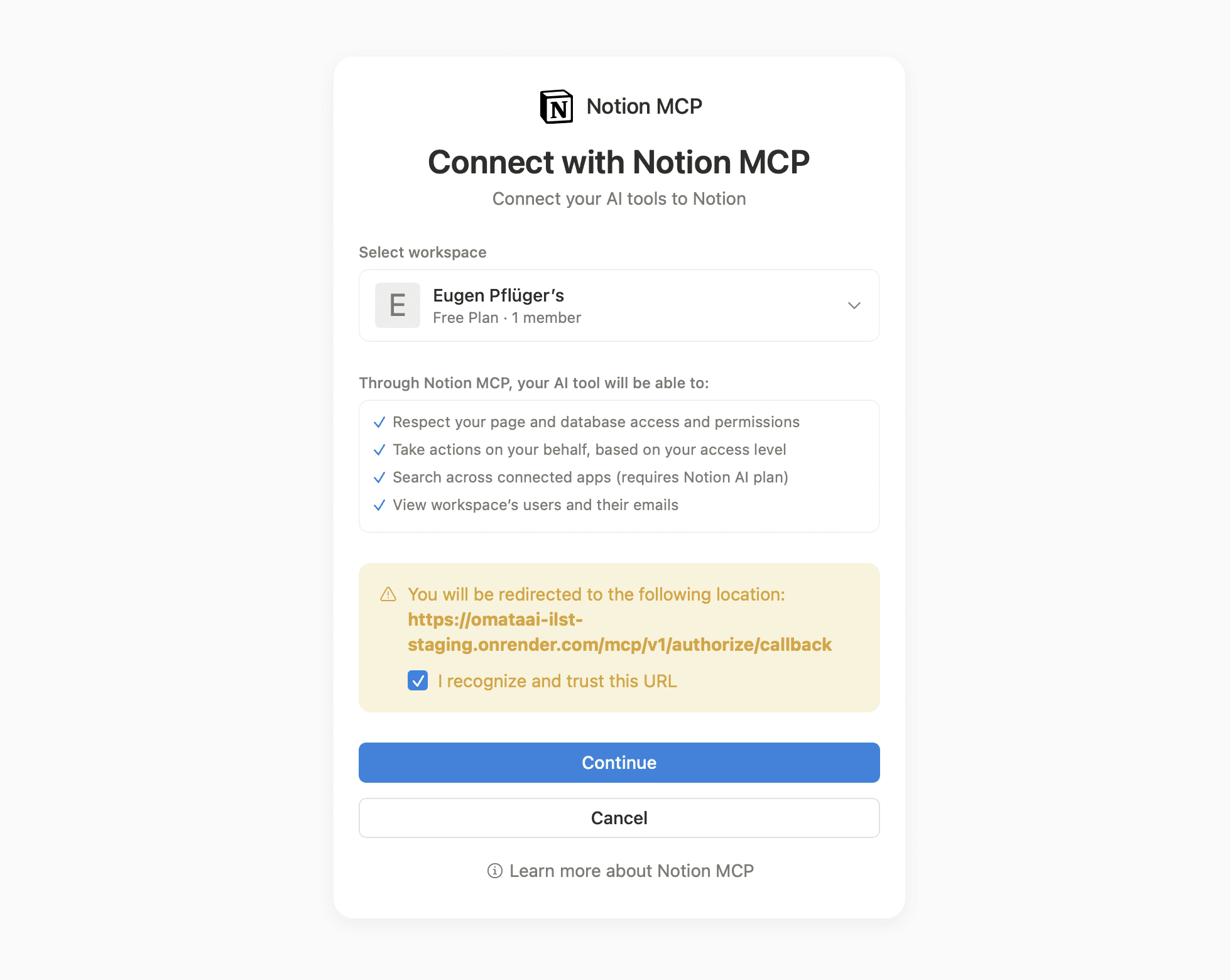
A browser will open that asks for permission
Authorize Notion to connect to MATE
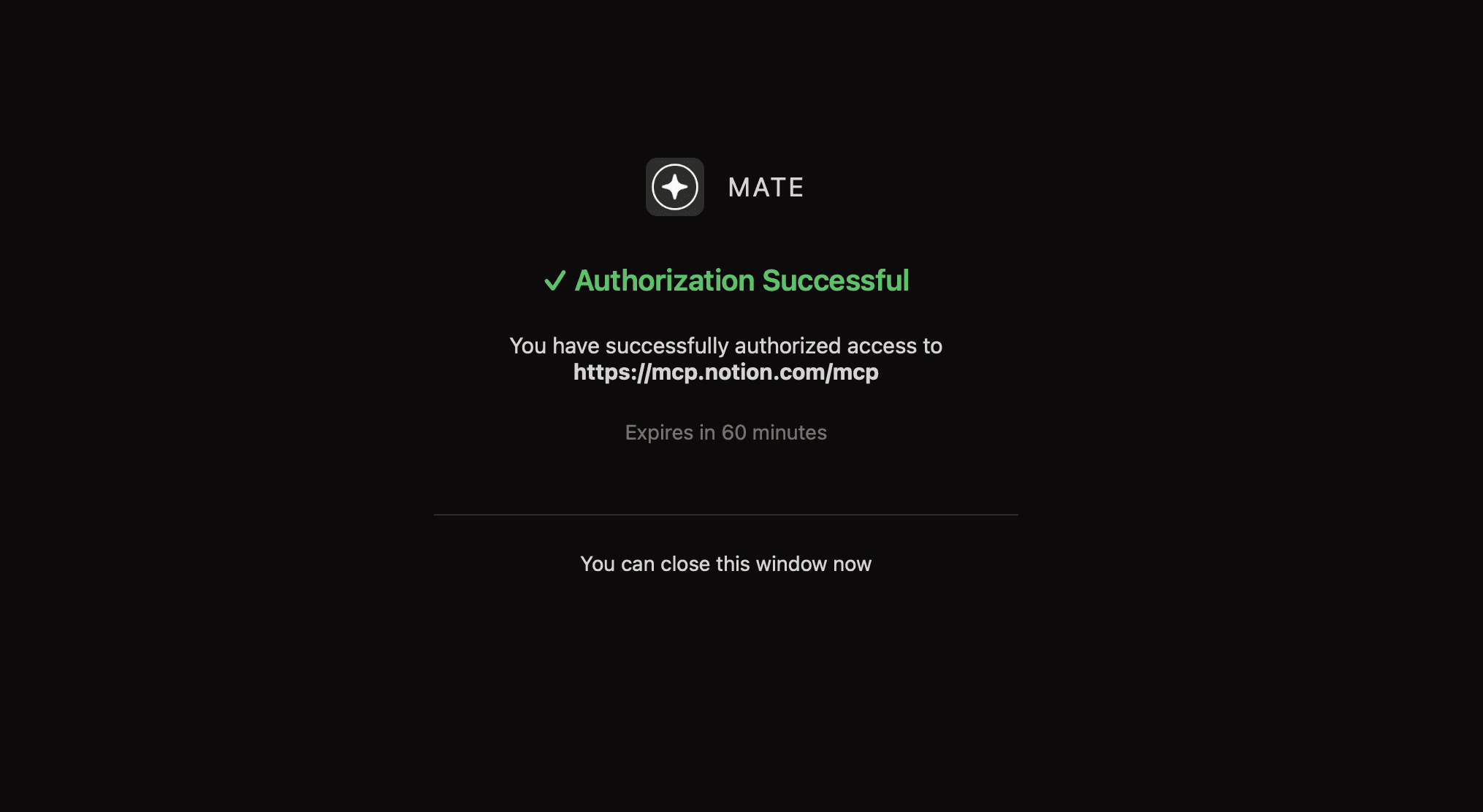
If you successfully authorized a webpage will appear. Close that page and return to MATE.
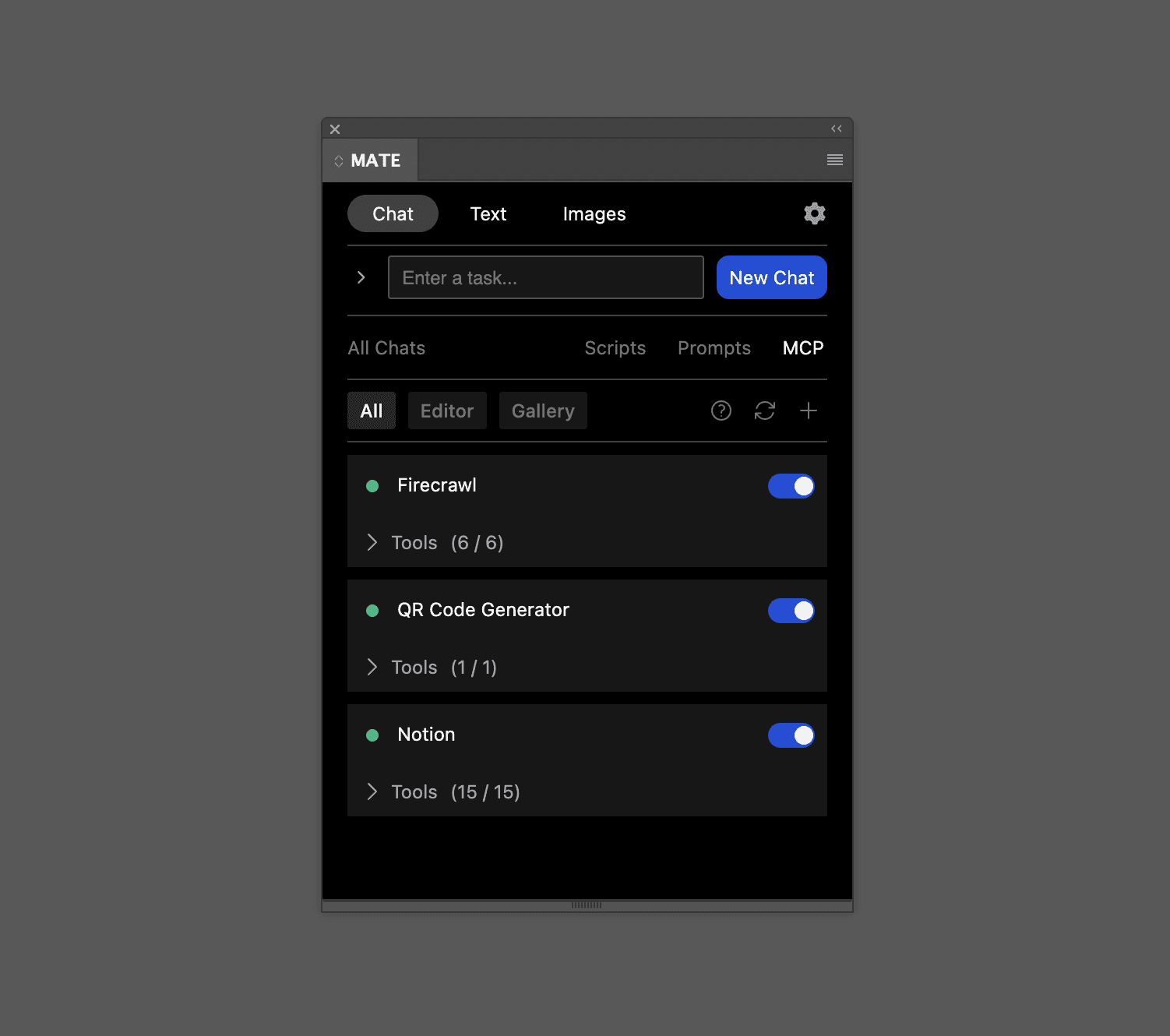
Notion MCP server is now connected.
If an MCP server needs authorization it will show a yellow "Connect" button. Click and follow the process.
Login to Notion and authorize MATE to connect to your Notion account.
After success you will see this screen that confirms it. Close it and return to MATE.
Notion can now be used in a chat.
Is something missing on this page? Please contact us support@omata.io