Getting Started
Reference
Guides
How to find and run updates
There are several ways to update Adobe plugins.
Quick check
The quickest way: follow this link. It should open the details page of your MATE variant in Creative Cloud directly. if there is an update available there is a blue "Update" button.
MATE (Illustrator): https://adobe.com/go/cc_plugins_discover_plugin?pluginId=109684&workflow=share
MATE for InDesign: https://adobe.com/go/cc_plugins_discover_plugin?pluginId=202718&workflow=share
MATE for Photoshop: https://adobe.com/go/cc_plugins_discover_plugin?pluginId=7ad8ee93&workflow=share
#1 Finding an update
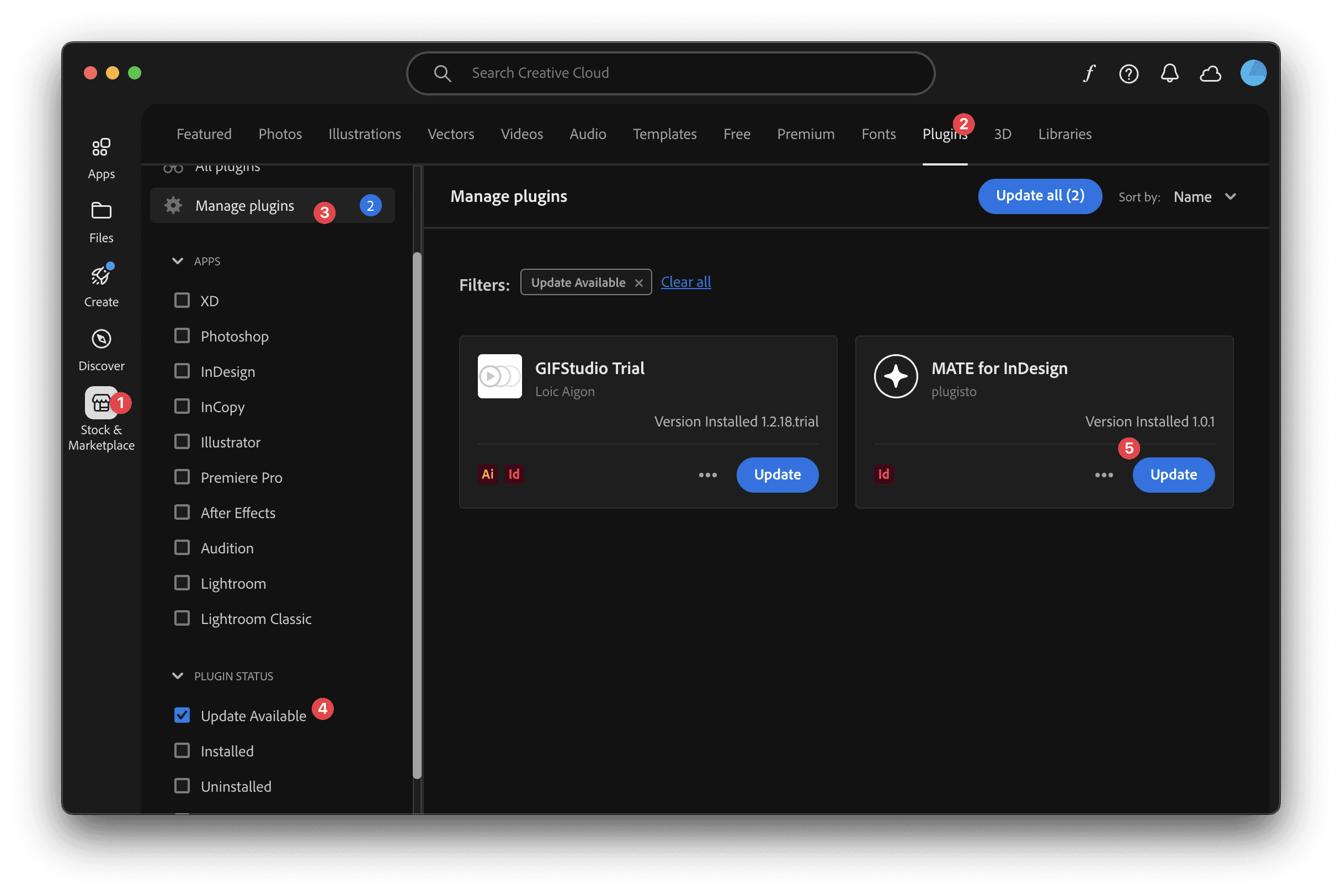
Follow these steps from 1 - 5 (from the screenshot below).
Open Creative Cloud Desktop App
Navigate to "Stock & Marketplace" and "Plugins"
On the left scroll down to "Plugin Status" and click on "Update Available"
On the right you'll then find all available updates
#2 Open the plugin details page
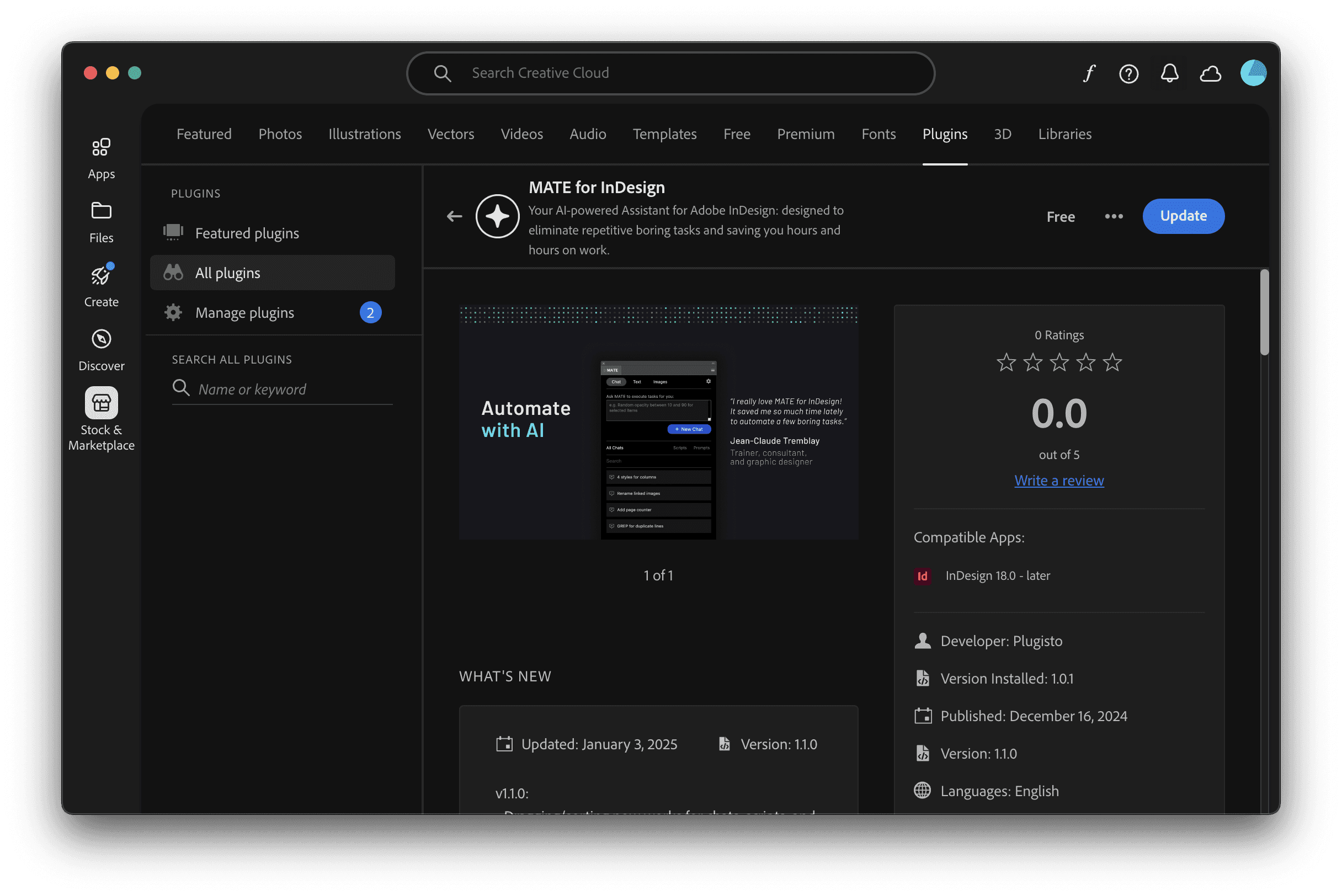
Open Creative Cloud Desktop App
Enter "MATE for InDesign" in the search bar at the top
Scroll down results until you see it listed
Open the details page and click on "Update"
Running an update
After you have found the "Update" button, quit your host app (InDesign, Illustrator, etc)
Click on "Update" and let it run
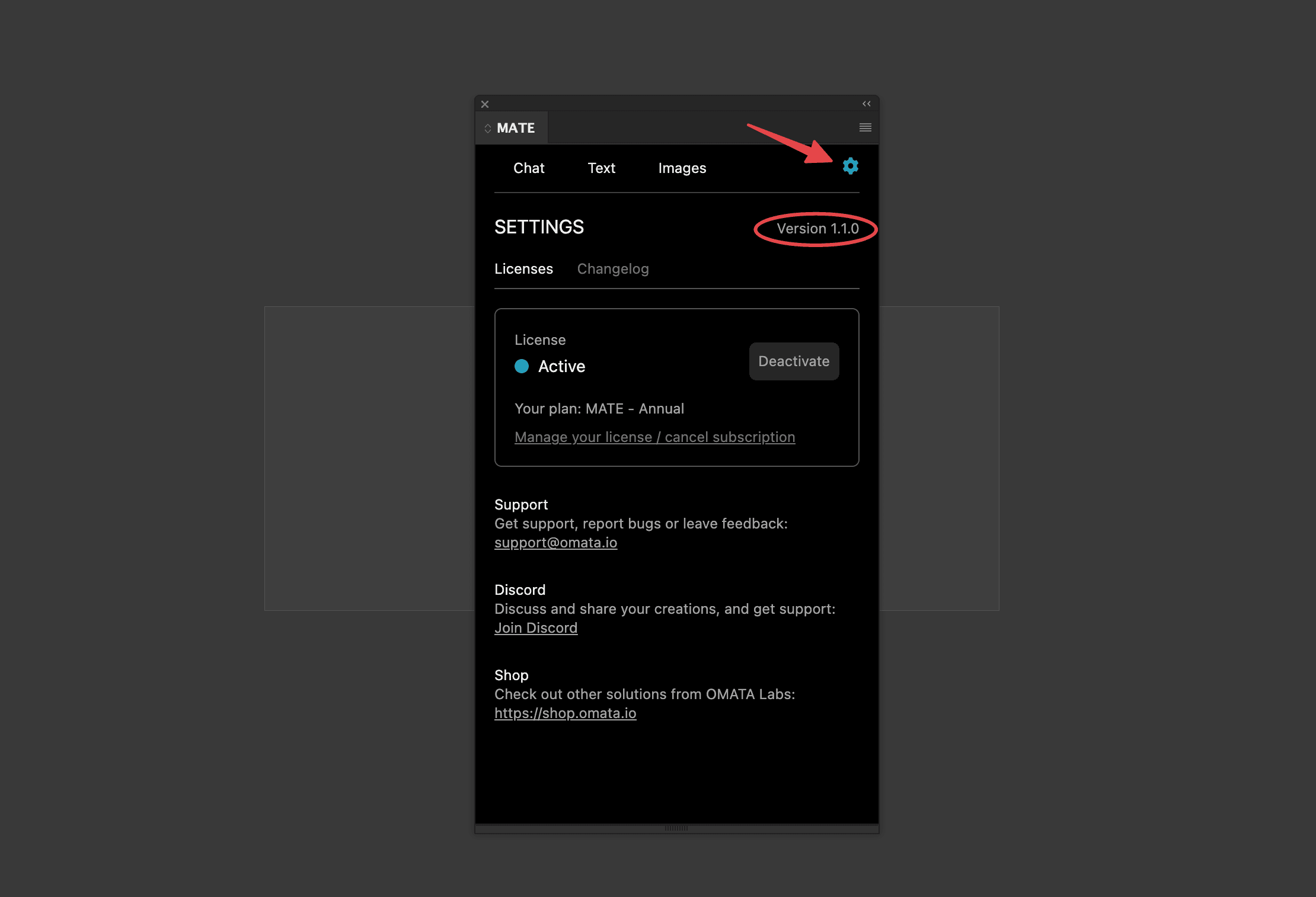
Restart your host app, open MATE (Windows>Extensions>MATE), and check the new version on the "Settings" page