Photoshop Script: Export Groups to TIFF Automatically
Photoshop has a lot of export options. But there is one thing it still cannot do: export layer groups as individual files.
You can export single layers. But that is not useful for groups!
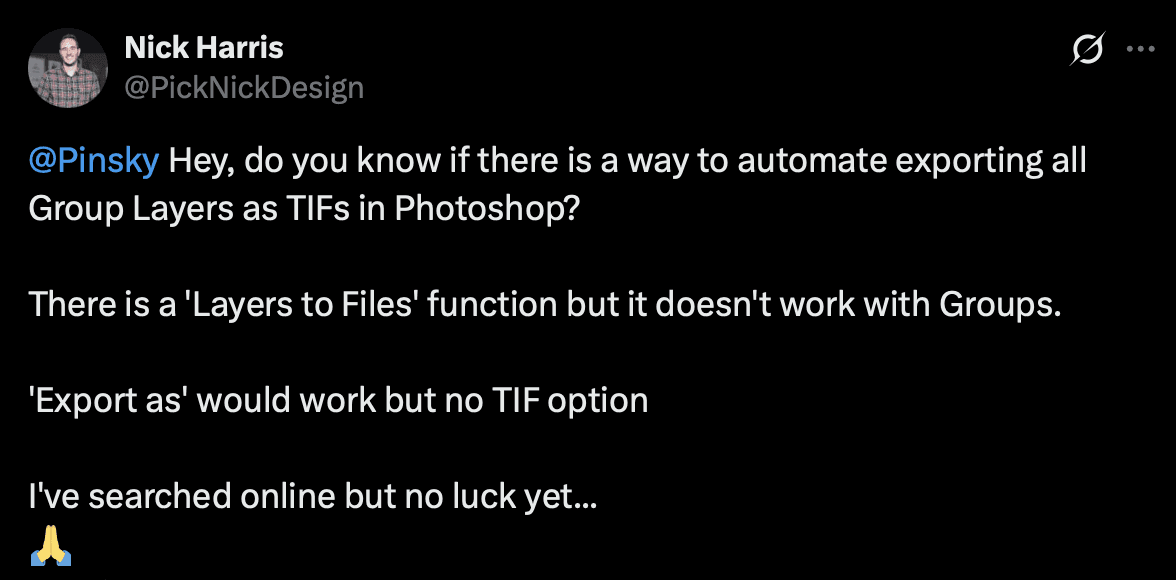
Recently I came across a tweet by Nick Harris that mentioned this limitation.
That got me curious. So I tried solving it using MATE for Photoshop, as you may know can generate Photoshop scripts from prompts. It took one prompt and about two minutes to create a working solution.
What the Script Does
The script exports each top level group in your Photoshop document as a separate TIFF file.
Workflow:
- It hides all layers.
- Shows one group.
- Exports it as a TIFF.
- Repeats for every group.
The files are saved automatically to my "Downloads" and there in a "tif" folder. You can edit this of course. I'll show you how in a minute. If a filename already exists, it automatically adds a number.
Demo file
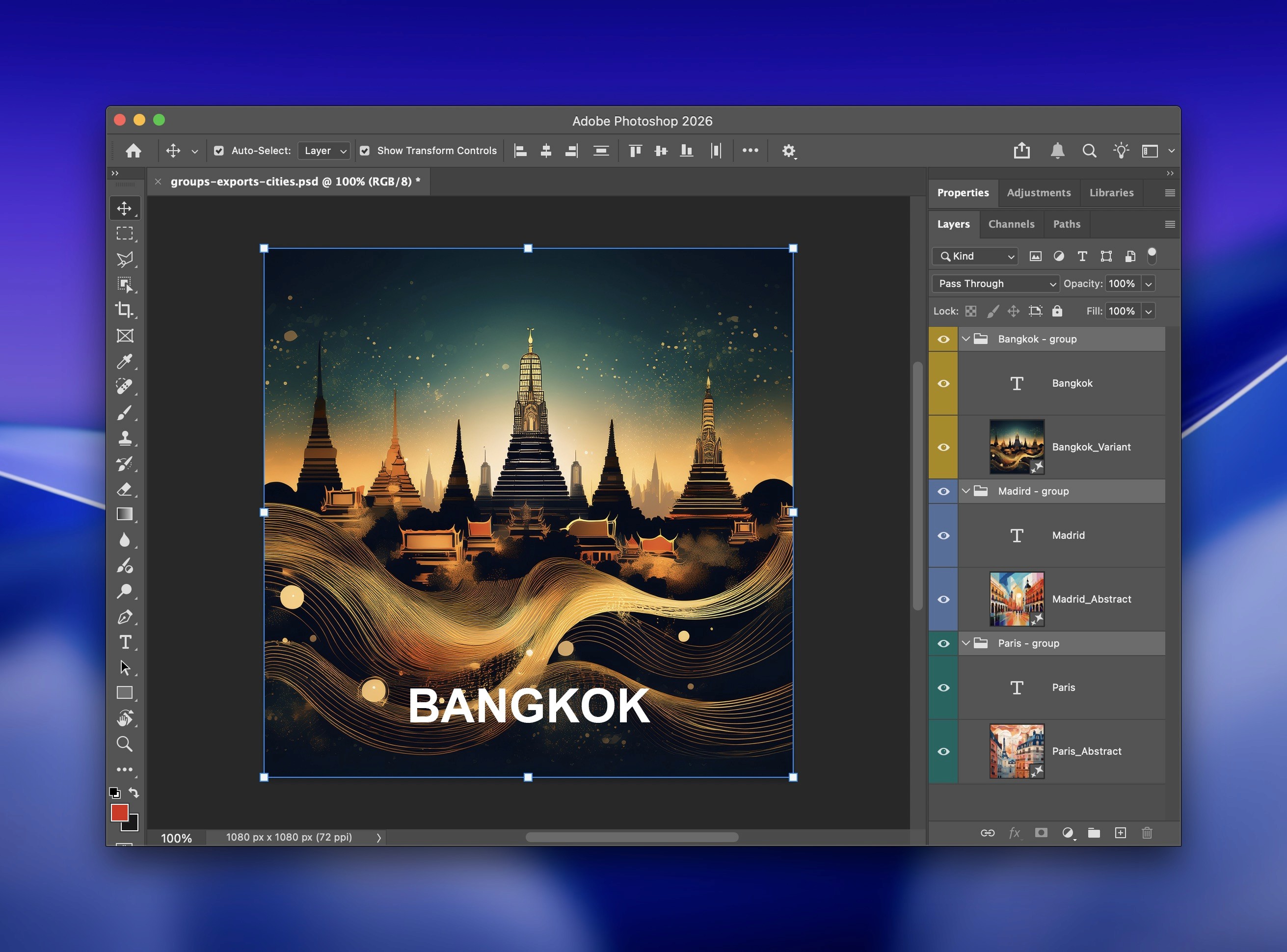
Our script comes in handy if you have a document like this.

Each group contains a composition that needs to be exported as a file. Instead of manually toggling visibility and exporting each one, the script does it automatically.
The Script
Save the following script in a .jsx file:
export-groups-to-tif.jsxThen run it in Photoshop like this or import it to MATE and run it from there:
File → Scripts → BrowseScript:
// Created with MATE for Photoshop
#target photoshop
app.displayDialogs = DialogModes.NO;

if (app.documents.length === 0) {
    alert('No document is open.');
} else {
    var doc = app.activeDocument;

    var outFolder = new Folder('~/Downloads/tif');
    if (!outFolder.exists) outFolder.create();

    function sanitizeFileName(name) {
        var s = name;
        s = s.replace(/[\\\/\:\*\?\"\<\>\|]/g, '_');
        s = s.replace(/\s+/g, ' ');
        s = s.replace(/^\s+|\s+$/g, '');
        if (s.length === 0) s = 'Group';
        return s;
    }

    function uniqueFile(folder, baseName, ext) {
        var f = new File(folder.fsName + '/' + baseName + ext);
        if (!f.exists) return f;
        var i = 2;
        while (true) {
            f = new File(folder.fsName + '/' + baseName + '_' + i + ext);
            if (!f.exists) return f;
            i++;
        }
    }

    var topLayers = doc.layers;
    var originalVis = [];
    for (var i = 0; i < topLayers.length; i++) {
        originalVis.push({ layer: topLayers[i], visible: topLayers[i].visible });
    }

    var groups = doc.layerSets;
    if (!groups || groups.length === 0) {
        alert('No top-level group layers found.');
    } else {

        var tiffOptions = new TiffSaveOptions();
        try { tiffOptions.imageCompression = TIFFEncoding.TIFFLZW; } catch (e1) {}
        try { tiffOptions.byteOrder = ByteOrder.IBM; } catch (e2) {}
        try { tiffOptions.embedColorProfile = true; } catch (e3) {}
        try { tiffOptions.alphaChannels = true; } catch (e4) {}
        try { tiffOptions.transparency = true; } catch (e5) {}
        try { tiffOptions.layers = false; } catch (e6) {}

        for (var g = 0; g < groups.length; g++) {
            var grp = groups[g];

            for (var j = 0; j < topLayers.length; j++) {
                topLayers[j].visible = false;
            }

            grp.visible = true;

            var outFile = uniqueFile(outFolder, sanitizeFileName(grp.name), '.tif');
            doc.saveAs(outFile, tiffOptions, true, Extension.LOWERCASE);
        }

        for (var k = 0; k < originalVis.length; k++) {
            try { originalVis[k].layer.visible = originalVis[k].visible; } catch (e7) {}
        }

        alert('Exported ' + groups.length + ' group(s) to: ' + outFolder.fsName);
    }
}
How the Script Was Created
This script was generated using MATE for Photoshop.
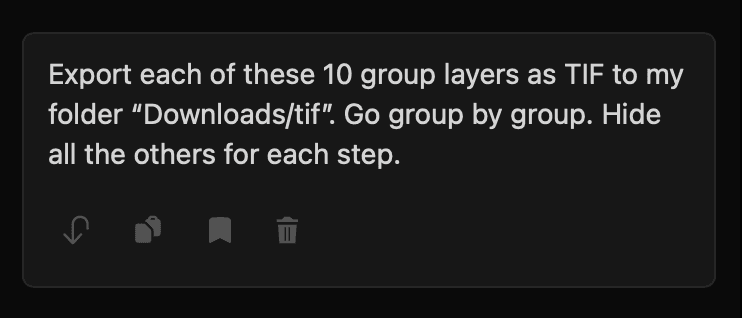
Prompt used:
A more general prompt (tip: you can save prompts in MATE to be reused later):
Create a Photoshop script that exports every top-level group as a TIFF file.
Only one group should be visible at a time and the files should be saved to a folder.
The plugin writes the script automatically.
You can then run it immediately or edit it.
Final Thoughts
Photoshop scripting is extremely powerful. But writing scripts manually is not easy. Using AI to generate small automation tools like this makes it much easier to solve everyday workflow problems.
A two minute script can easily save hours of repetitive work.
———————————-
Trouble-shooting / If the Script Doesn’t Work
Sometimes a script may not run perfectly on the first try. Photoshop versions differ and documents can have unexpected structures.
The easiest fix is simply to ask MATE again.

Example:
Didn't work. Fix it please.You can also paste the error message or describe what happened.
Example:
The script runs but it exports empty files. Fix it.MATE will adjust the script and generate a corrected version.
Improving the Script
Once the script works, you can easily improve it.
Just ask MATE to modify it.
1. Move Variables to the Top
It’s often useful to collect important settings in one place.
Example prompt:
Improve the script. Move all important variables to the top of the file.This makes it easier to tweak things later.
2. Customize the Export Location
You may want to change where the files are saved.
Two easy options:
Option A: Change it directly in the script
Look for this line:
var outFolder = new Folder('~/Downloads/tif');Change it to any path you want.
Example:
var outFolder = new Folder('~/Desktop/exports');Option B: Ask MATE to add a folder selector
Prompt:
Modify the script so the user can choose the export folder.This will add a folder picker dialog.
3. Add a UI (Highly Recommended)
One of the most powerful upgrades is adding a small interface. With a simple prompt you can create a small tool that is easy to use.
Just ask MATE:
Add a simple UI to this script.
Allow choosing the export folder.
Add an option to export only visible groups and layers.
This creates a small dialog where users can:
- choose the export location
- toggle options
- run the export
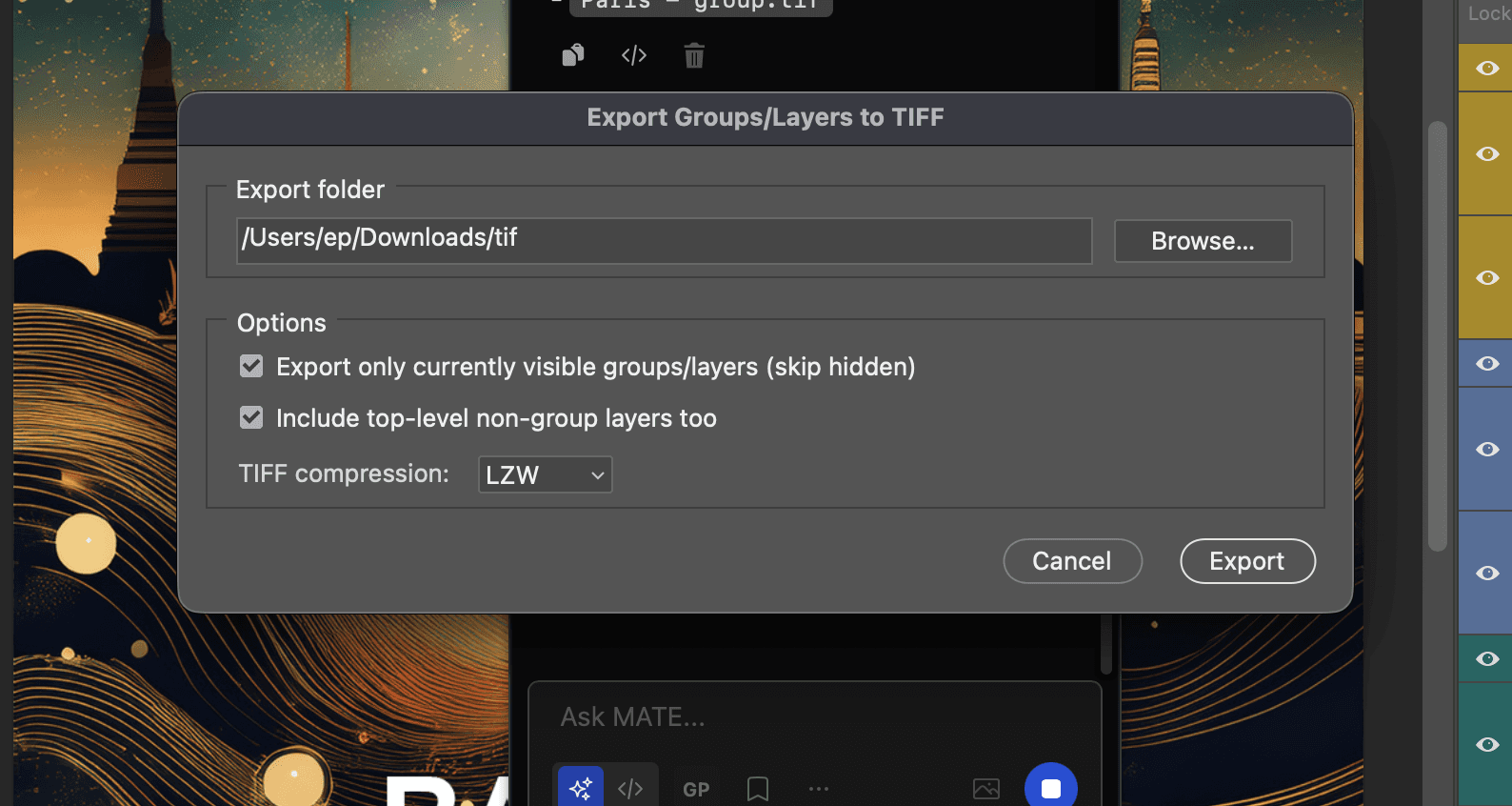
This makes the script much easier to use, especially for non technical users.
Bonus: Share the Script With Others
If you build something useful, you can share it directly from MATE. Use the Export in MATE option.
This allows others to:
- open the script
- edit it
- improve it
- run it immediately
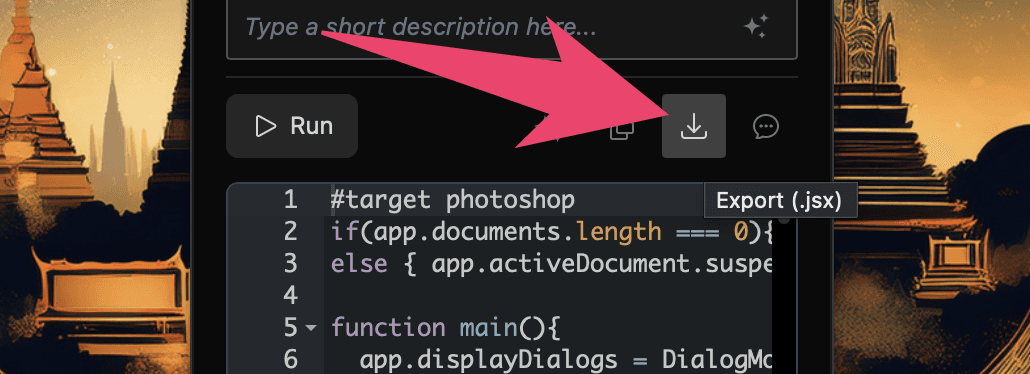
It’s a simple way to turn quick automations into reusable tools for others.