Sync Notion Content Directly to Adobe Express Templates (via MCP)
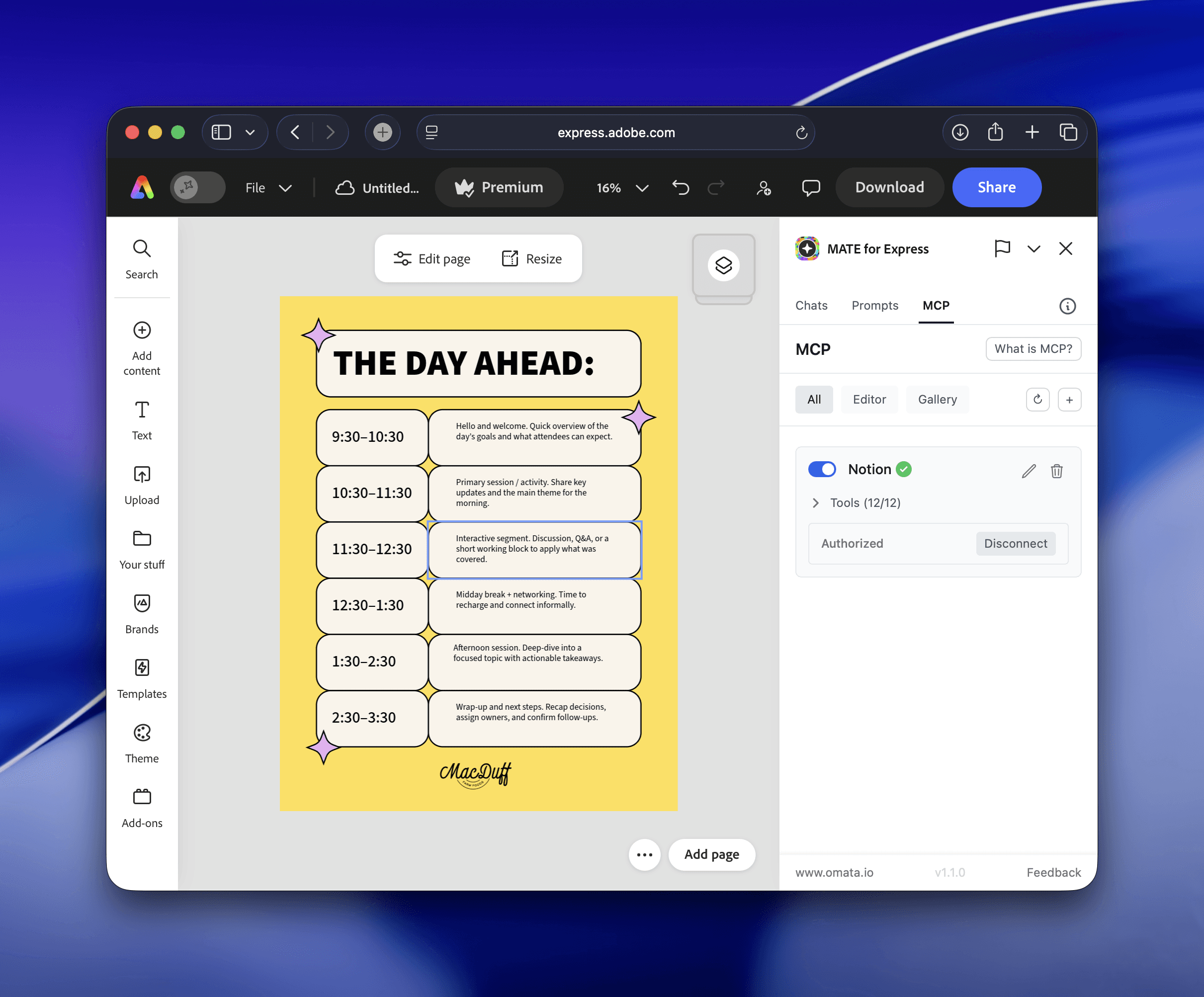
This tutorial outlines how to use MATE for Express to synchronize content from Notion directly into Adobe Express templates, effectively automating your workflow.
This workflow is ideal for letting customers edit content, or if you receive translations from external services.
This tutorial here is the written counterpart of this short video:
Phase 1: Connect MATE to Notion
- Open Adobe Express: Launch Adobe Express in your web browser.
- Access MATE:
- In the sidebar open "Add-ons". In the top search bar enter "MATE for Express".
- In the search results click on MATE for Express to open it.
- MATE opens on the right side
- Authenticate Notion:
- In MATE leave the chat (use Back button on the top left)
- In the home view click on the "MCP" tab
- Select "Notion" from the list of available servers (or add it from Gallery)
- Turn the Notion server on and click "Connect"
- A new browser window will appear; log into Notion and allow the connection to MATE
- Once you see the "Authorization Successful" page, you can close that tab and return to your Adobe Express workspace.
Congratulations. You now connected MATE to your Notion account!
Phase 2: Let MATE setup a Notion page first
If you don't have a Notion page yet. You can save some manual work and just ask MATE to set it up for you and prefill with content that matches your Express template.
- Select a Template: Pick an Express template or open your design page.
- Generate a Notion page : Now comes the magic part. Ask MATE to set up a Notion page with this prompt:
"Use Notion: create a new page in Notion. Prefill it with content from the current Express page."
MATE will setup a page in Notion and enter content from your template. It will organize the content with lists and tables. Ready for you to edit it.
Et voila. You have your CMS page set up for you automatically.
Phase 3: Synchronizing Content
- Edit contents: You or someone from your team or your client can now change contents on the Notion page. Try to match the current structure and text lenghts.
- In MATE start a new chat. Enter this into the prompt:
"Use Notion to find the page named [name of your Notion page], read all its content and structure, then update the current design page to match that content. If multiple Notion pages match, ask me which one to use before applying changes." MATE will perform several steps to fetch content from your Notion page and fill it into your Express design page.
Congrats. You now have a simple but powerful setup for dynamic content.
Btw, this workflow also is supported by MATE for InDesign, Illustrator, and Photoshop!