MATE Can Now Understand Video
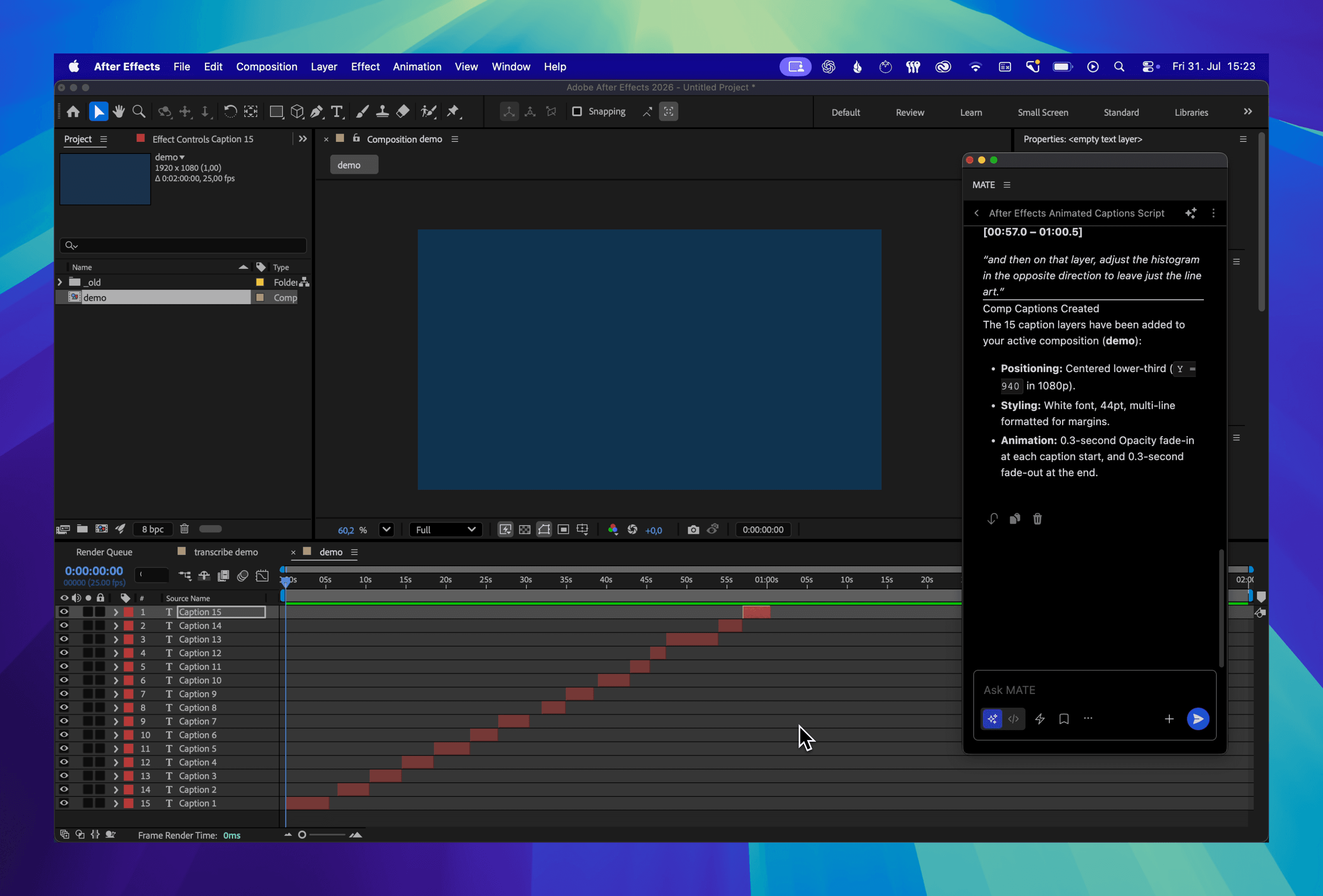
MATE for After Effects can now work with video input when you use a Gemini model with video support.
Watch the quick demo
The workflow is simple:
- Choose a supported Gemini model in MATE.
- Attach an MP4 or MOV file, or paste a YouTube link into your prompt.
- Ask MATE to transcribe the video and build captions in your current composition.
MATE uses the video as context, creates the transcript, and brings the result into After Effects. What used to involve separate transcription tools, copy and paste, and a lot of manual timing can now begin with one prompt.
A practical prompt
Transcribe this video and create timed captions in my current composition. Use one caption per phrase and keep every caption inside the safe area.
Couldn’t copy. Select the prompt and copy it manually.
Once the captions are in the composition, you can continue from there. Ask MATE to translate them, adjust the styling, change their position, or prepare the composition for rendering.
Use video with every MATE
This also works with MATE for Illustrator, InDesign, and Photoshop. Paste a tutorial about a script or effect and ask MATE to analyze it. MATE can help set up the document, organize layers and objects, apply effects, or write the script based on the video.